

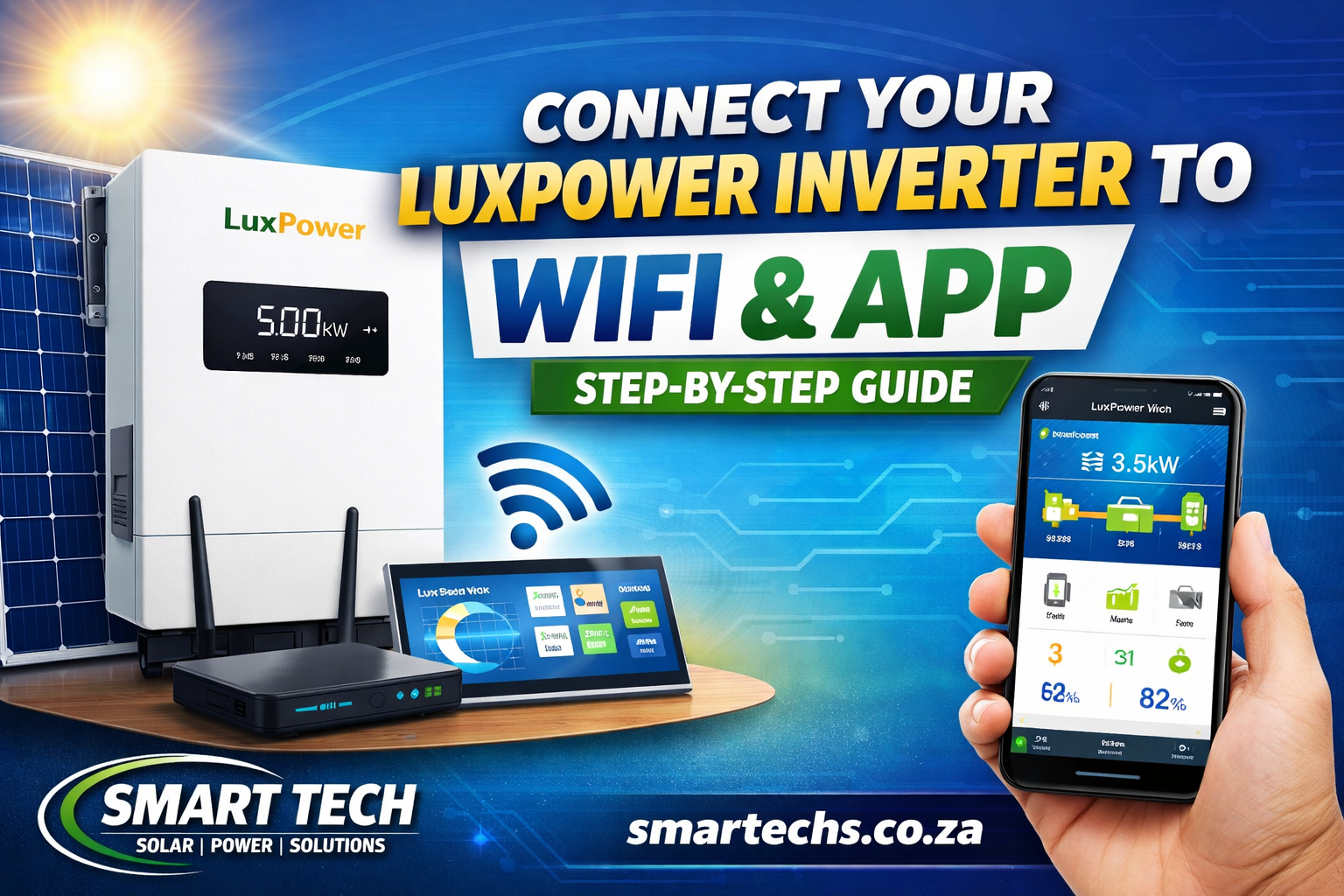
If you’ve recently installed a LuxPower inverter, connecting it to WiFi and the monitoring app is one of the most important steps. This allows you to track your solar performance, monitor battery usage, and troubleshoot your system remotely.
In this guide, we’ll walk you through exactly how to connect your LuxPower inverter to WiFi and the mobile app—quickly and correctly.
Why Connect Your LuxPower Inverter to WiFi?
Before we get into the setup, here’s why it matters:
- 📊 Real-time system monitoring
- 🔋 Battery performance tracking
- ⚡ Solar generation insights
- 🔧 Remote diagnostics & support
- 📱 Access via mobile app anytime, anywhere
What You’ll Need Before You Start
Make sure you have the following ready:
- A LuxPower inverter with a WiFi dongle installed
- Your home WiFi network name & password
- A smartphone (Android or iPhone)
- The LuxPower monitoring app (Smart ESS / LuxPower View)
- Stable internet connection
Step 1: Power On Your Inverter
Ensure your inverter is:
- Fully powered on
- Running normally (no fault errors)
- WiFi dongle plugged in securely
💡 Tip: The WiFi dongle usually has a small LED indicator—this helps confirm it’s active.
Step 2: Connect to the Inverter’s WiFi Network


6
- Open your phone’s WiFi settings
- Look for a network like:
“LXP-XXXXXX” - Connect to this network
🔐 Default password is usually: 12345678
Step 3: Open the Configuration Page
- Open your phone browser
- Enter this IP address:
👉 10.10.100.254 - You’ll see the LuxPower WiFi configuration page
Login details (default):
- Username: admin
- Password: admin
Step 4: Connect to Your Home WiFi


6
- Click “Wizard” or “Station Mode”
- Select your home WiFi network (SSID)
- Enter your WiFi password
- Click Save / Connect
⏳ Wait about 30–60 seconds for connection
💡 Once connected, the dongle LED will usually stop blinking and become stable.
Step 5: Download & Set Up the App
Search and install:
- LuxPower View OR
- Smart ESS App
Available on:
- Google Play Store
- Apple App Store
Step 6: Register Your Account
- Open the app
- Tap Register
- Enter:
- Email address
- Password
- Verify your email
Step 7: Add Your Inverter to the App


7
- Tap “Add Plant” or “Add Device”
- Scan the QR code on the inverter or WiFi dongle
(or enter serial number manually) - Name your system (e.g., “Home Solar”)
- Save
Step 8: Confirm Everything is Working
Once connected, you should see:
- Solar production ☀️
- Battery charge 🔋
- Grid usage ⚡
- Load consumption 🏠
Common Issues & Fixes
❌ Can’t find WiFi network (LXP-XXXX)
- Check dongle is powered
- Restart inverter
- Move closer to inverter
❌ WiFi connected but no data on app
- Check internet connection
- Re-add device in app
- Confirm correct serial number
❌ Configuration page not loading
- Ensure you’re connected to inverter WiFi
- Try a different browser
- Re-enter IP: 10.10.100.254
Pro Tips from Smart Tech
- Install inverter close to router for strong signal
- Avoid using 5GHz-only WiFi (use 2.4GHz)
- Label your inverter serial number for easy setup
- Use surge protection to protect your system
Need Help Connecting Your LuxPower Inverter?
At Smart Tech, we help homeowners and businesses across Johannesburg set up and optimize their solar systems.
👉 If you’re struggling with setup or want a professional to configure your system:
- WiFi setup & troubleshooting
- App configuration
- System performance optimization
📞 Contact us today via smartechs.co.za
Use LuxPower View or Smart ESS, depending on your inverter model.
The default is usually 12345678.
Common causes include incorrect password, weak signal, or using a 5GHz network.
Yes, once connected to WiFi and the app, you can monitor your system from anywhere.
